


📝 Update: Since the original writing of this solution, you now need to build this solution with Salesforce Flow instead of Process Builder. The concept, however, remains the same.
Marketing Cloud has a native product for SMS messages called MobileConnect, which is a great built-in way to combine SMS messages with other types of marketing messaging. Combined with Ad Studio, you can even create a Journey that sends your subscribers an email, an SMS message, and a Facebook ad either in tandem or based off of their current and past behaviors.
The MobileConnect Limitation
There is a limitation, though. MobileConnect only allows you to broadcast an SMS and craft auto-responses if the subscriber replies. So, a lot of marketers look to other solutions for two-way SMS. By two-way SMS, I am referencing the ability to have a back-and-forth conversation with the subscriber.
Real-World Use Case
For example, let’s imagine that you are a company that provides dog walking services. You would like to create a journey that blasts out an SMS message with a coupon code for unengaged subscribers as a way to get them to use your service. However, you don’t want to just blast out a coupon code. You also want to schedule a dog walker for them over SMS, rather than directing them to your app or website.
So, now we have a use case for both Marketing Cloud Journeys and two-way SMS. You want to blast out an SMS nurturing campaign and also allow for a back-and-forth conversation to continue on.
Traditional vs. Simplified Approach
Traditional Solution (30+ Hours)
There are several third-party SMS companies out there. The conventional solution to including a third-party service in a Journey is to spend at least 30 hours of development time creating a Custom Journey Builder Activity, which requires creating a web app that takes the Journey data as an input and sends the SMS request out as an API call to the third-party SMS app.
Simplified Solution (No Code Required)
However, if your Marketing Cloud is connected to Salesforce Core, you can leverage Process Builder to achieve this integration in a fraction of the time with zero coding resources.
Choosing Your SMS Provider
First, you want to choose a third-party SMS service that has an app in the Salesforce AppExchange and leverages Process Builder to trigger messages. Both TextUs and Twilio have apps on the AppExchange, and both have a method of using Process Builder to send SMS messages.
TextUs Options
- TextUs for Salesforce: Available in the AppExchange with step-by-step Process Builder guide
- TextUs Next: Available directly from the company (not on AppExchange, less documented)
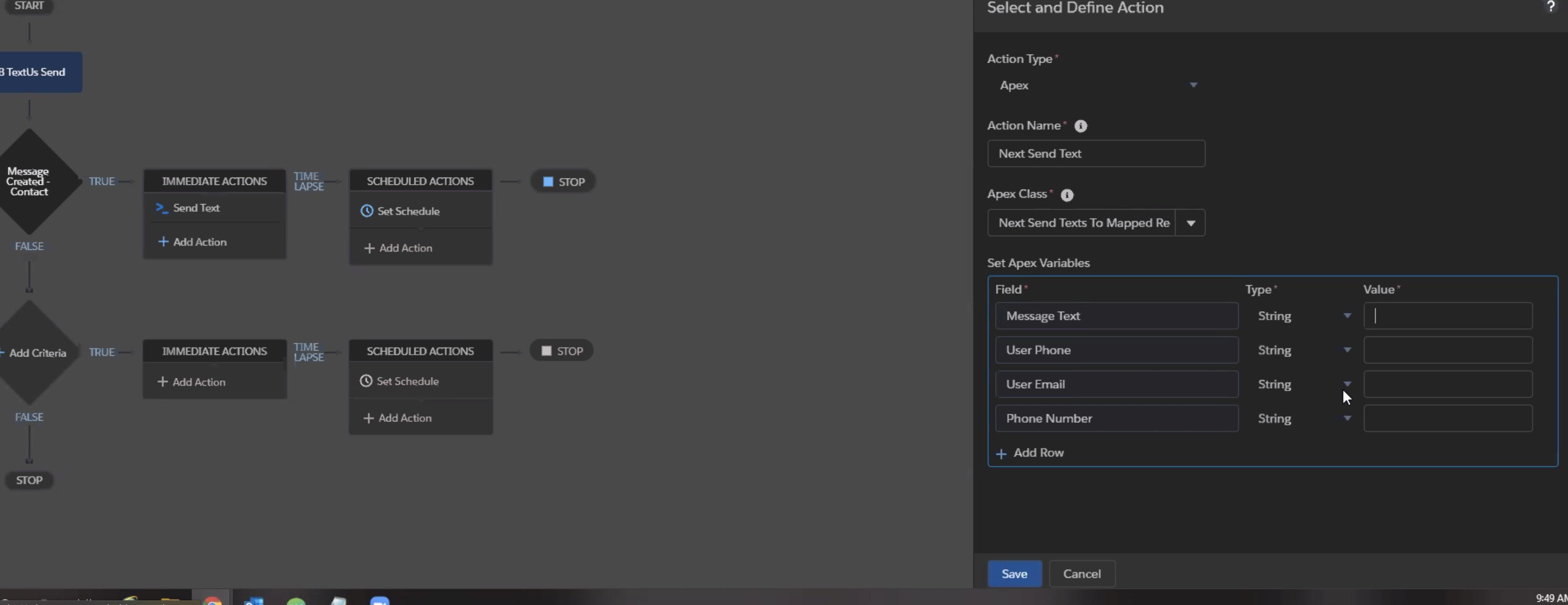
Both TextUs variants come with an Apex class that is installed with the managed package. When you build out a process, you will be calling that Apex class and sending it values that it needs in order to send a message to the correct person.
Step-by-Step Implementation
Step 1: Create Custom Object in Salesforce
You can trigger the process by creating a record or changing a record. These are both actions that can be triggered from Marketing Cloud’s Journey Builder. For this example, we are going to create a record on a custom object called “Marketing Cloud Message”.
Create a custom object in Salesforce with the following fields:
- Message Text (Text, 255)
- Phone Number (Phone)
- User Phone (Phone)
- User Email (Email)
Field Purposes:
- Message Text: What you want the SMS message to say
- Phone Number: The recipient’s phone number
- User Phone and Email: Who the text is coming from (TextUs allows texts from specific users vs. generic short codes)
Step 2: Configure Process Builder
Now you are going to go to Process Builder and create a process that is triggered when a new Marketing Cloud Message record is created.
Process Configuration:
- Trigger: When a record is created
- Object: Marketing Cloud Message
- Action Type: Apex
- Apex Class:
- TextUs Next:
Next Send Texts to Mapped Recipient - TextUs for Salesforce:
tubl__SendMessageInvocableAction - Twilio:
Twilio Send SMS Message
- TextUs Next:
You will then populate the relevant fields as required by the SMS service with mapped fields from the record that you created.
Step 3: Journey Builder Integration
The next step is incorporating the creation of these outgoing messages into Marketing Cloud Journey Builder.
Journey Setup:
- Create a Multi-Step Journey
- Use the Object Activity at the bottom of the canvas
- This activity allows you to select any object in your Salesforce Core universe
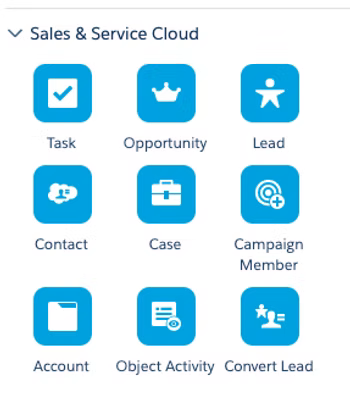
Activity Configuration:
- Drop the Object Activity onto your canvas
- Search for “Marketing Cloud Message” object
- Select “Create New” from the next screen
- Map all the fields you created in the Salesforce object
Step 4: Field Mapping
You will map these fields to the information that will make up the message:
- Message Text field: Write out the content of the SMS
- Phone Number field: Select the contact’s phone number from either:
- Journey Entry source
- Contact’s Marketing Cloud record (if appropriately mapped)
- Additional Apex Variables: Map as required by your SMS service:
- TextUs Next: Requires User Phone and User Email variables
- Twilio: Only requires Message and Phone Number
Complete Workflow
The Process Flow:
- Journey triggers → Contact enters journey
- Object Activity → Creates Marketing Cloud Message record
- Process Builder → Detects new record creation
- Apex Class → Sends SMS via third-party service
- Two-way conversation → Handled in third-party platform
Key Benefits
✅ No Custom Development: Zero coding required
✅ Fast Implementation: Hours instead of weeks
✅ Native Integration: Uses existing Salesforce infrastructure
✅ Two-Way Conversations: Full conversational SMS capability
✅ Journey Integration: Seamless Marketing Cloud workflow
✅ User Attribution: Messages can come from specific sales reps
Technical Considerations
Requirements:
- Marketing Cloud connected to Salesforce Core
- Third-party SMS app installed from AppExchange
- Custom object creation permissions
- Process Builder access
Response Handling:
After the SMS goes out, any responses will be handled in the third-party platform, whether that is within Salesforce or on the service’s own platform.
Journey Flexibility:
This can be the only activity in the journey, or you can build more activities around it. You might include:
- Follow-up emails based on SMS engagement
- Lead scoring updates
- Task creation for sales reps
- Data extension updates
Comparison: SMS Service Options
| Feature | TextUs for Salesforce | TextUs Next | Twilio |
|---|---|---|---|
| AppExchange | ✅ Available | ❌ Direct only | ✅ Available |
| Documentation | ✅ Complete | ⚠️ Limited | ✅ Complete |
| Required Fields | Message, Phone, User | Message, Phone, User Phone, User Email | Message, Phone |
| Process Builder | ✅ Native support | ✅ Native support | ✅ Native support |
Use Cases
This integration is perfect for:
- Service Scheduling: Book appointments via SMS
- Lead Qualification: Conversational lead scoring
- Customer Support: Two-way support conversations
- Event Coordination: RSVP and logistics via SMS
- Sales Follow-up: Personal outreach from specific reps
- Booking Confirmations: Interactive confirmation flows
Conclusion
By leveraging Process Builder and Salesforce Core connectivity, you can add sophisticated two-way SMS capabilities to your Marketing Cloud campaigns without any custom development. This approach:
- Saves development time and costs
- Provides enterprise-grade reliability
- Integrates seamlessly with existing workflows
- Enables true conversational marketing
The combination of Marketing Cloud’s automation power with third-party SMS capabilities creates opportunities for more engaging, interactive customer experiences that go far beyond traditional broadcast messaging.
Next Steps: Consider how two-way SMS conversations can be integrated with your existing lead scoring, customer service, and sales processes to create a truly connected customer experience.