


FormStack for Salesforce, as the name suggests, integrates very nicely with Salesforce. Within this app, there are two different types of forms you can create - stand-alone forms and Community Forms.
Community Forms are forms that you can build in the FormStack app and then drop into your Community as a component. There are, however, some significant limitations to these forms.
The Problem: No Auto-Save on Navigation
Issue #1: Manual Save Required
The first issue to address is that the ability to save your progress while filling out the form is not possible on a Community Form. Instead, you have to leverage the form’s ability to prefill based on the logged-in user and the selection of the most recently created record as the prefill.
This solution is a very good one, and it’s great that they provide the JavaScript snippet for public consumption. However, it relies on the user actually clicking the Save Progress button. What if you want to force them to save their progress as they traverse through a very large, multi-page form?
Issue #2: No Record Creation Until Save
Which brings me to shortcoming number two. Salesforce records are not created when a new form is started. However, they are created if the user saves their progress or submits a form.
A multi-page form could have the power to leverage Salesforce’s Process Builder on the backend to prefill fields further along on the form if only a record was created immediately upon starting a form, or at least very close to the beginning.
The Official Response
I reached out to FormStack support to see if they had a solution to forcing the form to save upon clicking the Next or Back buttons. They suggested I submit it as a suggestion for future enhancements.
So, as the title of this blog suggests, here is the hack.
The Solution: JavaScript Hook
Using the code that FormStack already provides to create a Save for Later button, we are going to add in two additional lines to hook into the navigation buttons.
Complete JavaScript Code
var fs_SaveButtonClicked = false;

window.FF_OnAfterRender = function()
{
    var savebtn = document.createElement("input");
    savebtn.type = "button";
    savebtn.className = "sectionHeader ff-btn-submit"; // set the CSS class
    savebtn.id = "save_btn";
    savebtn.value = "Save for Later";
    fs('.btnDiv').prepend(savebtn);
    fs("#save_btn").click(SetStateToSaveAndSubmit);

    // These two lines are the hack additions:
    fs("#btnnext").click(SetStateToSaveAndSubmit);
    fs("#btnprev").click(SetStateToSaveAndSubmit);
};

window.FF_OnAfterSave = function() {
    var MESSAGE_ON_SAVE = "Your progress has been saved.";
    var MESSAGE_ON_SUBMIT = "Thanks for submitting!";

    if (fs_SaveButtonClicked) {
        fs_SaveButtonClicked = false;
        setTimeout(function() {
            var dlg = document.getElementById('dialog');
            dlg.innerText = MESSAGE_ON_SAVE;
        }, 10);
    } else {
        setTimeout(function() {
            var dlg = document.getElementById('dialog');
            dlg.innerText = MESSAGE_ON_SUBMIT;
        }, 10);
    }
};

var SetStateToSaveAndSubmit = function(e) {
    fs_SaveButtonClicked = true;
    SubmitData(e);
};
How It Works
Those two additional lines of code come from pulling the ID of the button type from the webpage that the form is on and replicating the JavaScript that tells the Save button to SetStateToSaveAndSubmit:
<div class="btnDiv">
    <input type="button" class="sectionHeader ff-btn-submit" id="save_btn" value="Save for Later" data-id="save_btn">
    <input id="btnsubmit" class="sectionHeader ff-btn-submit" type="button" value="Submit" data-btnmessage="Thank you for your submission!" data-btnurl="" data-id="btnsubmit" style="display: none;">
    <input id="btnprev" class="sectionHeader ff-btn-submit ff-btn-prev" type="button" value="Back" style="display: inline-block;" data-id="btnprev">
    <input id="btnnext" class="sectionHeader ff-btn-submit ff-btn-next" type="button" value="Next" style="display: inline-block;" data-id="btnnext">
</div>
Implementation Considerations
⚠️ Use Case Considerations
Do this on a form with lengthy pages. If there are just a couple of fields per page and a lot of clicking forward and back, you will drive your user insane with the “Your progress has been saved” pop-up.
Alternative: Get rid of the pop-up by removing the MESSAGE_ON_SAVE part of the above code.
🚨 Required Fields Issue
Because of the order in which functions are being processed, if there are any required fields on the next page the user will immediately receive a required field warning. I believe this is because the function to move forward is processed slightly before the function to save.
Solution 1: No Required Fields (Simple)
Have no required fields on your form.
Solution 2: Conditional Required Fields (Advanced)
Leverage the Edit Rules section of the form to require fields when other conditions are met.
Example implementation:
- Create a checkbox at the end of the form that asks “Are you sure this form is complete?”
- Set up rules: If response is “yes I am sure” AND a field that should be required is blank, then that field suddenly becomes required
- User gets sent back to fill out missing required fields
- If there are required fields on multiple pages, they are sent back to the first required field that they missed
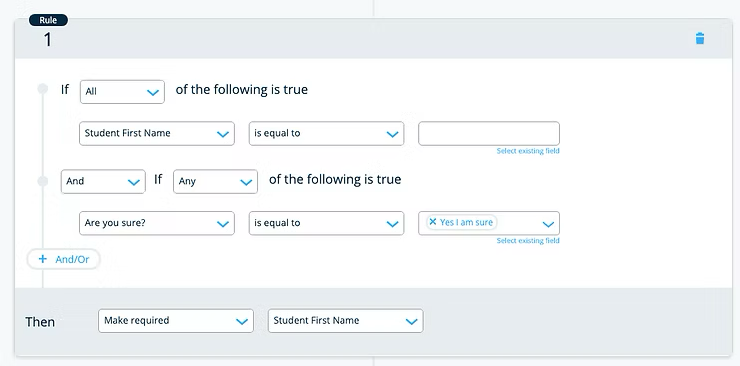
Creating multiple rules can be a little painful if you have several required fields, but it’s the price of a hacky yet seamless experience.
Benefits of This Approach
✅ Seamless User Experience: Auto-save on navigation
✅ Backend Process Triggers: Creates Salesforce records immediately
✅ No Lost Data: Progress preserved even if browser crashes
✅ Process Builder Integration: Enables backend automation
✅ Quick Implementation: Just two lines of additional code
Technical Workflow
- User starts form → No record created yet (FormStack limitation)
- User clicks Next/Back → JavaScript triggers save function
- Form saves progress → Salesforce record created/updated
- Process Builder fires → Backend automation possible
- User continues → Seamless experience maintained
Alternative Approaches
If this hack doesn’t fit your needs, consider:
Option 1: Stand-Alone Forms
Use FormStack stand-alone forms instead of Community Forms for more control.
Option 2: Native Salesforce Solutions
- Lightning Web Components for custom forms
- Flow Builder with screen flows
- Community Builder native form components
Option 3: Third-Party Alternatives
- Formassembly with better Salesforce integration
- JotForm with Salesforce connector
- Custom development with Salesforce APIs
Conclusion
This is a pretty quick fix that allows you to both give users a seamless experience and create processes on the backend upon creation of a record in Salesforce.
Key takeaways:
- The hack works by hijacking FormStack’s existing save mechanism
- It requires careful consideration of required field validation
- The trade-off is complexity vs. user experience
- It enables powerful backend automation possibilities
While this is a workaround rather than an official solution, it bridges the gap between FormStack’s limitations and real-world business requirements for complex multi-page forms in Salesforce Communities.
Pro tip: Test thoroughly in a sandbox environment before implementing in production, especially with complex conditional logic and required field rules!